
Blogs
How to Improve Website Page Speed for Better SEO
Author : Logicloop admin
Publish Date : 2026-07-28
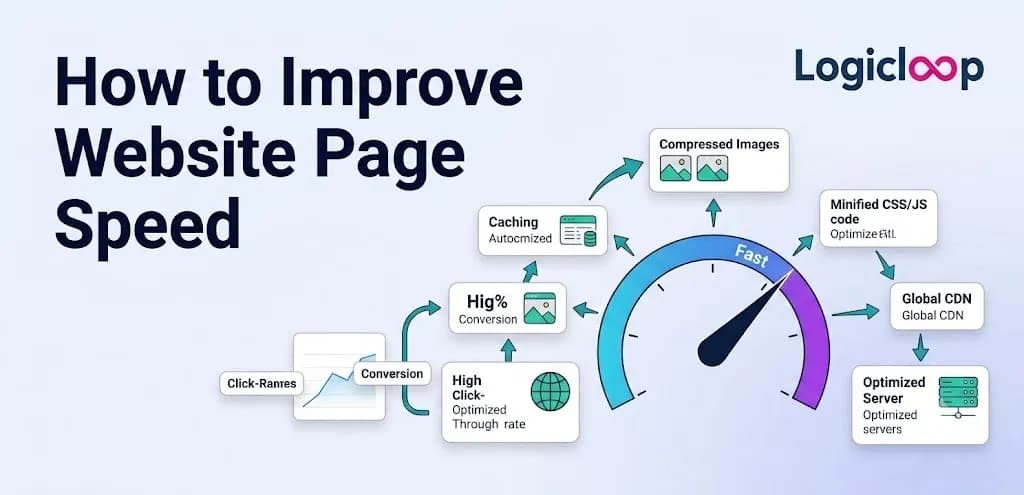
A client once handed us a site that looked stunning in the mockups and dismal in Google Search Console. Traffic was flat. Rankings had parked themselves on page two and refused to budge. Nobody on their team could explain it, because the design was clean and the writing was genuinely good.
The problem turned out to be one file. A single hero image on the homepage, exported straight from a design tool at full resolution. It weighed nearly 2MB. According to DebugBear's research on real-world sites with the exact same issue, an image that heavy can take around 4.7 seconds just to download before the rest of the page even starts to render. One file was quietly strangling the site's speed score, and its SEO with it.
We see this pattern all the time. Nobody sets out to build a slow website. It creeps in: a plugin here, an unoptimized photo there, a font pulled from three separate sources, and a page that should load in a second and a half suddenly needs six. If your goal is to improve page speed for SEO, here's the reassuring part. The fixes are well understood, mostly technical, and rarely require a redesign. You just need to find what's dragging the page down and cut it loose.
Key Takeaways
- Page speed is a confirmed Google ranking signal on both desktop and mobile, and users start bouncing after about three seconds.
- Images are the most common cause of slow pages and usually the easiest to fix. Compress, resize, and lazy-load them.
- Core Web Vitals grade real user experience, and LCP (Largest Contentful Paint) is almost always your biggest lever.
- Measure with PageSpeed Insights before you change anything, then confirm every fix actually moves the number.
- Speed work is ongoing, not a one-and-done project. New content and plugins slowly undo your gains.
What Page Speed Actually Measures
Page speed isn't one number, even though every tool loves to hand you a single score. Seobility describes it as the full stretch of time from the moment a browser sends a request to a server to the moment the page is completely displayed and usable. That covers how fast the server responds, how long it takes to download the HTML, CSS, and JavaScript, and how long the browser needs to paint everything and make it interactive.
Because it's a chain, one weak link slows the whole thing. A fast server behind a bloated theme still ships a slow page. A lean, well-coded page sitting on cheap, overloaded shared hosting will crawl anyway.
So website speed optimization is really detective work. You're hunting for the one or two things adding the most delay, fixing those first, then working your way down the list.
Why Google Cares, and Why You Should Too
Page speed has been a confirmed Google ranking factor for desktop and mobile for years. Semrush notes that visitors are measurably more likely to bounce off a page that takes longer than three seconds to load. Three seconds sounds generous, right up until you watch real people behave. Sematext's research tightens the window even further, finding that users lose focus somewhere between 0.3 and 3 seconds when a page is slow to respond. That's not a lot of runway.
There's a second reason speed matters that most people miss: crawl budget. Seobility explains that Google hands each site a limited amount of crawling activity, and it crawls slow pages less often because they're more expensive to fetch. Push your server response time past roughly 500 milliseconds and Googlebot may start visiting less frequently, which means new content and updates take longer to get indexed.
Edge of the Web adds a newer wrinkle worth filing away. As AI tools and answer engines increasingly crawl the web to build their own indexes, faster pages tend to get crawled more. That matters if you care about showing up in AI-generated answers, not just the classic ten blue links.
So speed SEO isn't an abstract box to tick. It shapes how often Google visits, how many visitors stay long enough to convert, and where you land against competitors who actually bothered to fix their load times.
Core Web Vitals, Briefly
Google measures real-world page experience through a set of metrics called Core Web Vitals. Here are the three that matter, using the thresholds referenced by Sematext and expanded on by DebugBear.
| Metric | What it tracks | Good | Poor |
|---|---|---|---|
| LCP (Largest Contentful Paint) | How long the biggest visible element takes to render | ≤ 2.5s | > 4s |
| CLS (Cumulative Layout Shift) | How much content jumps around while loading | < 0.1 | Higher is worse |
| INP (Interaction to Next Paint) | How fast the page responds when you click or tap | Faster is better | — |
LCP usually points at your hero image or a big heading. CLS is that annoying jump when a button slides down because an image above it finally popped in. INP replaced the older First Input Delay metric and measures responsiveness once someone actually interacts.
You don't need to memorize the exact numbers. What you need to know is that Google grades real user experience, not just a lab test, and the biggest lever for your score is almost always LCP. That, in turn, usually comes down to how heavy your images and render-blocking scripts are.
Start by Measuring, Not Guessing
Before you touch anything, run your page through Google's PageSpeed Insights, part of the wider set of speed resources Google maintains for developers. It gives you a score plus specific, prioritized suggestions instead of a vague grade. Google also offers PageSpeed Modules, which can automatically rewrite and optimize resources on servers running Apache or Nginx. That's handy if you manage your own infrastructure and want some of this handled at the server level rather than page by page.
Test both the mobile and desktop versions of your key pages. Mobile scores are almost always worse, and Google evaluates mobile performance separately.
Pro Tip: Write down your current load speed and Core Web Vitals before you change a single thing. That baseline is your proof. Every fix below should move the number, and if one doesn't, you'll know to look somewhere else instead of assuming it worked.
Fix Your Images First
Images are the single most common cause of slow load speed, and happily, they're usually the easiest thing to fix. Image compression, which shrinks a file while keeping it visually close to the original, can cut a photo's weight by 60 to 80 percent with no perceptible quality loss.
Pick the right format for the job:
- JPEG for photographs.
- PNG for graphics with transparency or sharp edges.
- WebP or the newer AVIF anywhere your platform supports them, since both compress noticeably better than older formats while looking just as good.
Size matters as much as compression. A 3000-pixel-wide image squeezed into a 600-pixel container is wasted bandwidth no matter how well you compress it. Serve images at the dimensions they'll actually appear on screen, and use responsive markup like the HTML picture element so different devices pull appropriately sized versions.
The Lazy Loading Trick
Then there's lazy loading, which tells the browser to hold off downloading images until a visitor is about to scroll to them, rather than grabbing every image the second the page opens. Add loading="lazy" to below-the-fold images, and someone who never scrolls past your intro never forces their browser to fetch images they'll never see.
For the one image that matters most, usually the hero at the top, do the opposite. Mark it as high priority so the browser fetches it first. DebugBear found that adding priority hints to a key image shaved almost a full second off LCP in one test. That's a big jump for a one-line code change.
Clean Up the Code Getting in the Way
Minification strips out the unnecessary characters in your CSS, JavaScript, and HTML: whitespace, comments, verbose variable names, all the stuff that helps humans read code but does nothing for browsers. Per file, it's a small win. Across a typical page, it adds up.
The bigger gains usually come from render-blocking resources, the scripts and stylesheets that force the browser to stop and download them before it can show anything at all. Loading JavaScript with the defer attribute lets the browser start painting the page while scripts download quietly in the background, instead of freezing everything until they finish.
Pair that with trimming your total number of HTTP requests, the individual calls a browser makes to fetch each file. Semrush cites data showing the median desktop site fires off 76 separate requests, and every one adds a little round-trip time, especially on a slow connection. Bundling smaller CSS and JavaScript files into fewer, larger ones brings that count down.
On the server side, turning on gzip or Brotli compression shrinks text-based files before they cross the network, then unpacks them in the browser. This is usually a setting your host or CDN flips on rather than something you hand-code, and it can meaningfully cut transfer size for HTML, CSS, and JavaScript.
Get a CDN and Use Caching Properly
A CDN, or content delivery network, is a spread of servers in different geographic locations, each holding copies of your site's static files. Rather than every request traveling to your one server wherever it happens to live, visitors get served from whichever CDN node sits physically closest to them. For an audience spread across countries or continents, this alone can cut load times a lot, because so much of a page's delay is simply the distance data has to travel.
Caching works right alongside it. Caching means storing a copy of your page or its assets so they don't have to be rebuilt or re-downloaded from scratch every time.
Here's how the two main types compare:
| Type | Where it lives | What it does |
|---|---|---|
| Browser caching | The visitor's device | Holds files like your logo, CSS, and fonts locally, so a second visit loads dramatically faster than the first |
| Server-side caching | Your server | Stores a pre-built version of a page so the server doesn't regenerate it from a database on every request |
DebugBear recommends setting cache-control headers on static assets for as long as a year. A logo or stylesheet rarely changes, so there's no good reason to make repeat visitors redownload it.
The Smaller Fixes That Add Up
None of these will transform your score on its own, but together they matter, and they're quick.
- Reduce redirect chains. When one URL bounces to another that bounces to a third before landing on the real page, each hop adds latency.
- Preload your two or three most essential fonts, keep each under 100KB, and use font-display: swap so text shows up in a fallback font immediately instead of staying invisible while the real one downloads.
- Use preconnect hints so the browser can open connections to third-party domains, like a CDN or an embedded video service, before it actually needs them.
And if you're on WordPress or a similar CMS, give your plugins and theme a hard look. Bloated themes stuffed with features you don't use, and plugins piled on top of each other, are one of the most common speed killers we run into, right beside oversized images. Each one can load its own CSS and JavaScript whether the page needs it or not. Auditing that list and cutting anything that isn't earning its keep is often worth more than any single technical tweak here.
Your Page Speed Checklist
Work through this in order and re-test after each block:
- Ran PageSpeed Insights on mobile and desktop, saved a baseline
- Compressed and resized all images, converted to WebP or AVIF
- Added loading="lazy" to below-the-fold images
- Marked the hero image as high priority
- Minified CSS, JavaScript, and HTML
- Deferred non-critical JavaScript
- Enabled gzip or Brotli compression
- Set up a CDN
- Configured browser and server-side caching
- Cleaned up redirect chains and audited plugins
Common Mistakes That Quietly Cost You
A few habits undo good speed work faster than anything else. Watch for these.
- Optimizing once and walking away. Speed drifts back down with every new post, script, and update. A great score in January means little by June if nobody's checking.
- Testing only on desktop. Mobile is where Google grades you and where most of your traffic likely is. A desktop-only test hides your real problem.
- Chasing a perfect 100. The last few points often cost more effort than they return. Getting Core Web Vitals into the "good" range is the win worth aiming for.
- Ignoring the hero image. It's usually your LCP element and your single biggest lever. Compress it, prioritize it, and you've done half the job.
- Stacking plugins for convenience. Every plugin you add for a small feature can drag its own CSS and JavaScript onto every page.
Treat It as Ongoing, Not a One-Time Fix
The mistake most sites make is treating page speed as a project with an end date. It isn't. Every new blog post, plugin update, tracking script, or embedded widget can slow things back down.
Rerun PageSpeed Insights every month or two, not just once after a redesign. Set up some form of monitoring, even a basic uptime and speed checker, so you catch regressions before they've been live for six months and quietly bled away your rankings.
Real-World Example
Back to that client with the 2MB hero image. Compressing it, converting it to WebP, and marking it as a priority asset took under an hour of actual work.
Their LCP dropped from "poor" into "good" within a week of Google recrawling the page. Organic traffic climbed steadily over the next two months. That's speed SEO in practice: unglamorous, mostly technical, and reliably worth the effort once you know where to look.
Frequently Asked Questions
Is page speed really a Google ranking factor?
Yes. Google has confirmed page speed as a ranking signal for both desktop and mobile search, and it factors into the page experience signals through Core Web Vitals. It won't outrank great content on its own, but it can absolutely hold a good page back.
What's a good page load time?
Aim to render your main content in under 2.5 seconds, which is Google's "good" threshold for LCP. Semrush notes that bounce rates climb sharply past the three-second mark, so treat three seconds as a ceiling you don't want to hit, not a target.
What is Core Web Vitals in plain terms?
It's Google's set of real-user experience metrics. LCP measures how fast your main content appears, CLS measures how much the page jumps around while loading, and INP measures how quickly the page reacts when someone clicks or taps.
Which fix should I do first?
Start with images. They're the most common cause of slow pages and usually the easiest to fix. Compressing and resizing a heavy hero image often moves your LCP more than any other single change.
Do I actually need a CDN?
If your visitors are spread across regions or countries, yes, a CDN can cut load times meaningfully by serving files from a location physically closer to each user. For a small, purely local audience the gain is smaller, though caching benefits still apply.
What's the difference between WebP and JPEG?
Both work well for photos, but WebP compresses noticeably better at the same visual quality, so your files come out smaller. Use WebP (or the newer AVIF) wherever your platform supports it, and keep JPEG as a fallback for older browsers.
Will minifying my code break my site?
It shouldn't. Minification only removes characters browsers ignore anyway, like whitespace and comments. Test after you apply it, especially on JavaScript, but done through a reputable plugin or build tool it's very safe.
How does page speed affect crawl budget?
Google gives each site a limited amount of crawling activity and crawls slow pages less often because they cost more to fetch. Seobility notes that server response times past roughly 500 milliseconds can lead Googlebot to visit less frequently, delaying how fast new content gets indexed.
How often should I check my page speed?
Every month or two, and after any major change like a redesign, a new plugin, or a batch of new content. Speed drifts down over time, so periodic checks catch problems before they cost you rankings.
Can slow speed hurt me with AI search tools too?
It can. As Edge of the Web points out, AI tools and answer engines crawl the web to build their own indexes, and faster-loading pages tend to get crawled more. If you want to appear in AI-generated answers, speed helps there as well.
Final Thoughts
Page speed rarely feels exciting, and that's exactly why so many sites let it slide. But it sits underneath almost everything else in SEO: how often Google crawls you, how many visitors stay, and how you stack up against competitors who did the unglamorous work.
The path is straightforward. Measure first, fix your images, clean up the code getting in the way, add a CDN and caching, then keep an eye on it over time. Most of these changes take minutes, not weeks, and the payoff shows up in both your rankings and your conversion rate.
If you'd rather have someone dig into the technical side for you, the team at Logicloop can audit your site's speed and handle the fixes, so you can get back to the work only you can do.